


There’s nothing more frustrating than turning on your Mac and waiting… and waiting. If your once-speedy machine now feels sluggish at startup, you’re probably wondering how to fix slow boot Mac without diving into complicated tech fixes.
The good news? Most startup issues are easy to solve with a few smart adjustments. In this guide, we’ll walk through practical, proven ways to speed up your Mac’s boot time and get it running smoothly again.
Why Is Your Mac Booting Slowly?
Before fixing the issue, it helps to understand what’s slowing things down.
Common Causes of Slow Boot
- Too many startup programs
- Low storage space
- Outdated macOS
- Background processes and apps
- Disk errors or system clutter
Identifying the cause makes it easier to apply the right solution.
How to Fix Slow Boot Mac by Managing Startup Items
One of the biggest culprits is too many apps launching at startup.
Remove Unnecessary Login Items
Follow these steps:
- Open System Settings (or System Preferences)
- Go to “Users & Groups”
- Select your user account
- Click on “Login Items”
- Remove apps you don’t need at startup
Why This Helps
Fewer startup apps mean your Mac can boot faster and use fewer resources right away.
Free Up Storage Space for Faster Boot Time
Your Mac needs enough free space to function efficiently.
How to Clear Storage
- Delete unused apps and files
- Empty the Trash
- Remove large or duplicate files
- Move files to external storage if needed
Ideal Free Space
Try to keep at least 15–20% of your disk free for optimal performance.
Update macOS to Improve Performance
Running outdated software can slow down startup.
Steps to Update
- Open System Settings
- Go to “Software Update”
- Install any available updates
Benefits
Updates often include performance improvements and bug fixes that can speed up boot time.
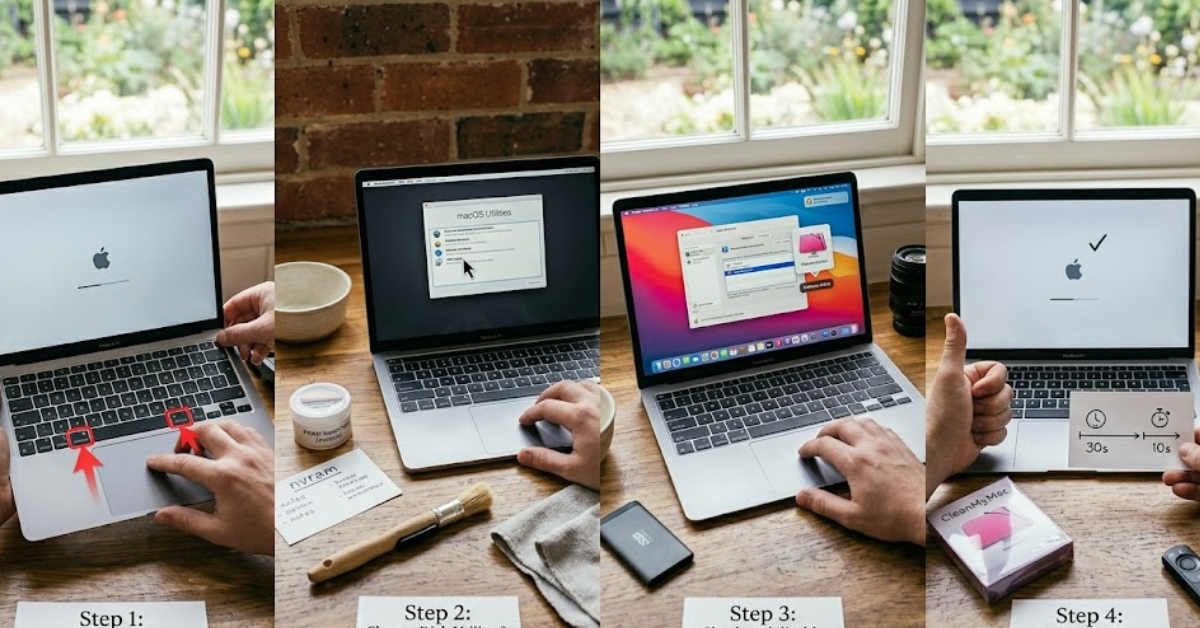
Reset NVRAM and SMC
Resetting system settings can resolve hidden issues.
Reset NVRAM
- Shut down your Mac
- Turn it on and immediately press Option + Command + P + R
- Hold for about 20 seconds
Reset SMC (for Intel Macs)
- Shut down your Mac
- Press Shift + Control + Option + Power for 10 seconds
- Release and restart
These resets can fix startup-related glitches.
Check Disk Health with Disk Utility
Disk errors can slow down boot performance.
Run First Aid
- Open Disk Utility
- Select your startup disk
- Click “First Aid”
- Run the scan
This process repairs minor disk issues that may affect startup speed.
Disable FileVault (If Necessary)
FileVault encrypts your disk, which can sometimes slow startup.
When to Consider Disabling
- If your Mac is older
- If boot time is significantly delayed
Important Note
Disabling FileVault reduces security, so weigh the pros and cons before making changes.
Reduce Background Processes
Too many background activities can slow your system.
What You Can Do
- Close unused apps before shutting down
- Check Activity Monitor for heavy processes
- Uninstall unnecessary software
Keeping things minimal helps your Mac start fresh each time.
Upgrade Hardware (If Needed)
If your Mac is older, hardware upgrades can make a huge difference.
Consider These Upgrades
- Switch from HDD to SSD (biggest impact)
- Increase RAM
These upgrades can dramatically reduce boot time and improve overall performance.
Quick Checklist to Speed Up Boot Time
If you want a quick summary of how to fix slow boot Mac, follow this checklist:
- Remove unnecessary startup apps
- Free up disk space
- Update macOS
- Reset NVRAM and SMC
- Run Disk Utility
- Reduce background processes
FAQs
1. Why is my Mac taking so long to start up?
This is usually due to too many startup items, low storage, or outdated software.
2. Does having too many apps slow boot time?
Yes, apps that launch at startup can significantly delay boot speed.
3. Will resetting NVRAM fix slow boot issues?
It can help resolve certain system-related startup problems.
4. Is upgrading to SSD worth it?
Absolutely. It’s one of the most effective ways to speed up your Mac.
5. How often should I clean up my Mac?
A monthly cleanup is a good habit to maintain performance.
Conclusion
Figuring out how to fix slow boot Mac doesn’t have to be complicated. In most cases, simple steps like managing startup items, freeing up storage, and keeping your system updated can make a noticeable difference.
To recap:
- Reduce startup apps for faster boot
- Keep your storage clean and organized
- Update your system regularly
- Use built-in tools to fix disk issues
With a little maintenance and attention, your Mac can go back to booting quickly and running smoothly. If performance still lags, consider hardware upgrades to give your system a fresh boost.