


You click once… and suddenly your computer registers two clicks. Frustrating, right? If you’re searching for how to fix mouse double clicking, you’re dealing with a surprisingly common issue that can slow down work, gaming, and everyday browsing.
The problem usually comes down to either software settings or worn-out hardware. Fortunately, most cases can be fixed with a few practical steps. This guide walks you through clear, proven solutions so you can get your mouse working normally again.
What Causes Mouse Double Clicking?
Before jumping into fixes, it helps to understand what’s going wrong. Double clicking on a single press is usually caused by one of these factors:
Common Reasons
- Worn-out mouse switches from long-term use
- Incorrect double-click speed settings
- Dust or debris inside the mouse
- Driver or software glitches
- Low battery (for wireless mice)
In simple terms, your system either misinterprets your click—or your mouse physically sends two signals.
How to Fix Mouse Double Clicking Issue (Quick Fixes)
Start with these simple solutions. They often solve the problem without any technical work.
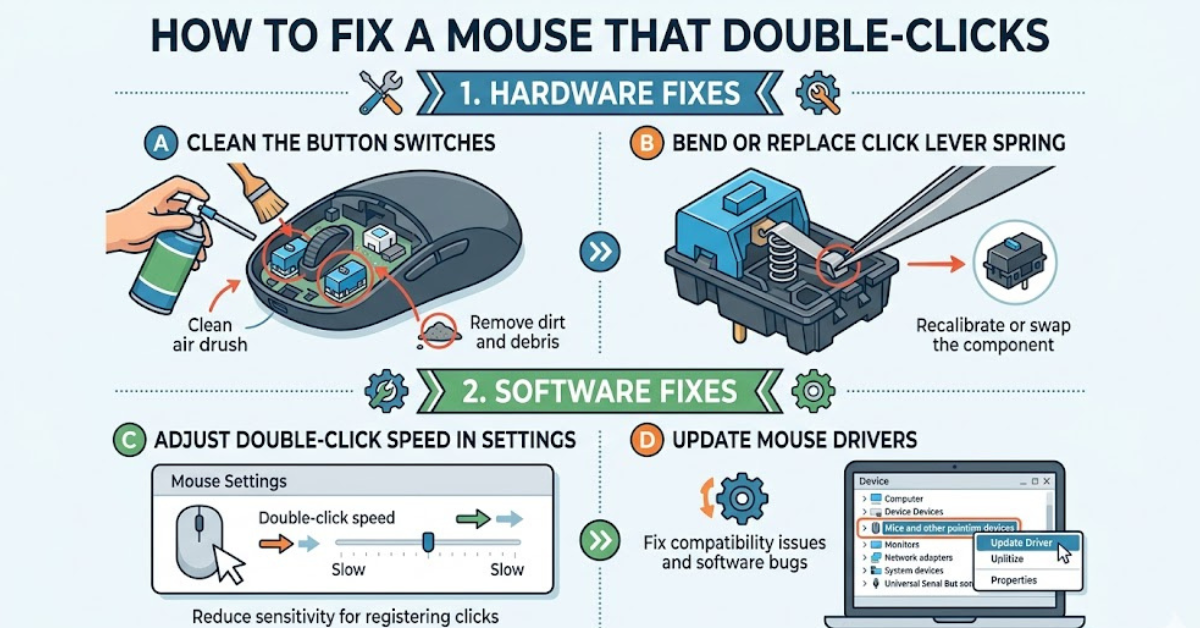
1. Adjust Double-Click Speed Settings
Sometimes your system is just too sensitive.
- Go to mouse settings in your control panel
- Find the double-click speed slider
- Move it slightly slower and test
This is one of the easiest ways to fix a mouse double clicking on single click.
2. Restart Your Computer
It sounds basic, but temporary glitches can cause input issues.
- Restart your system
- Reconnect your mouse
- Test again
If the issue disappears, it was likely software-related.
3. Check Mouse Battery (Wireless Users)
Low power can lead to inconsistent clicks.
- Replace or recharge batteries
- Ensure stable connection via Bluetooth or USB receiver
How to Fix Mouse Double Clicking Problem in Software
If quick fixes don’t work, move on to deeper software troubleshooting.
Update or Reinstall Mouse Drivers
Outdated drivers can cause input errors.
Steps:
- Open Device Manager
- Locate your mouse under input devices
- Update or uninstall the driver
- Restart your system
Windows will reinstall the correct driver automatically.
Disable Click Enhancements
Some systems include features that interfere with clicks.
- Turn off “ClickLock” or similar settings
- Disable third-party mouse software temporarily
- Test performance again
How to Fix Mouse Double Clicking by Cleaning
Dust and dirt can interfere with the internal switch mechanism.
Simple Cleaning Method
- Turn off and unplug your mouse
- Use compressed air around the buttons
- Gently clean with a soft cloth
Deeper Cleaning (Advanced)
If you’re comfortable opening the mouse:
- Remove screws carefully
- Clean around the click switch
- Reassemble properly
Even a small amount of debris can cause repeated signals.
Hardware Fixes for Persistent Double Clicking
If the issue continues, the problem is likely mechanical.
Replace the Mouse Switch
This is a more advanced fix but very effective.
- Requires soldering tools
- Replace worn-out micro-switch
- Restores original click behavior
Use a Software Workaround
If hardware repair isn’t an option:
- Install click-fix utilities
- These tools filter unintended double clicks
Consider Replacing the Mouse
Sometimes the simplest solution is the best one.
- Older mice wear out over time
- New models offer better durability
How to Prevent Mouse Double Clicking
Once your mouse is working again, a few habits can help prevent the issue.
Best Practices
- Avoid excessive force when clicking
- Keep your mouse clean
- Use a quality mouse pad
- Store it properly when not in use
Regular care can extend your mouse’s lifespan significantly.
Common Mistakes to Avoid
When trying to fix the problem, people often make avoidable errors.
Watch Out For
- Ignoring software settings and jumping to hardware fixes
- Using too much force while cleaning
- Installing unreliable third-party tools
A step-by-step approach works best.
FAQs
Why is my mouse double clicking on a single click?
This usually happens بسبب worn-out switches, incorrect settings, or dust inside the mouse.
Can software fix a hardware double clicking issue?
Software can reduce the problem, but it won’t fully fix worn-out hardware.
How do I fix mouse double clicking issue permanently?
If cleaning and settings don’t help, replacing the switch or the mouse is the most reliable solution.
Is double clicking a sign my mouse is broken?
Not always, but it often indicates wear and tear, especially in older devices.
Does changing double-click speed really help?
Yes, it can fix sensitivity-related issues, especially if your system is misinterpreting clicks.
Conclusion
Dealing with a faulty mouse can be annoying, but learning how to fix mouse double clicking gives you control over the situation. Whether it’s a simple settings tweak, a quick clean, or a hardware repair, most issues can be resolved without much hassle.
Start with the easy fixes, then move toward advanced solutions if needed. And if your mouse has simply reached the end of its life, replacing it might save you time and frustration in the long run.