


You’re trying to open a website, but instead of loading, you get a frustrating error. If you’re searching for how to fix DNS server not responding, you’re dealing with one of the most common internet issues out there.
The good news? It’s usually not as complicated as it sounds. In most cases, the problem can be fixed in minutes with a few simple tweaks. This guide breaks everything down in plain English so you can get back online quickly.
What Does “DNS Server Not Responding” Mean?
Before jumping into fixes, it helps to understand what’s going wrong.
A DNS (Domain Name System) server translates website names into IP addresses. When it stops responding:
- Your browser can’t find websites
- Internet connection may still be active
- Pages fail to load even though WiFi is connected
In short, your device can’t “locate” the website you’re trying to visit.
Common Causes of DNS Errors
Several issues can trigger this error. Knowing them helps you choose the right fix.
Most Frequent Reasons
- Incorrect DNS settings
- Outdated network drivers
- Router or modem issues
- Temporary system glitches
- Firewall or antivirus blocking access
Sometimes, it’s as simple as a network hiccup.
How to Fix DNS Server Not Responding (Quick Fixes)
Start with these basic solutions. They work surprisingly often.
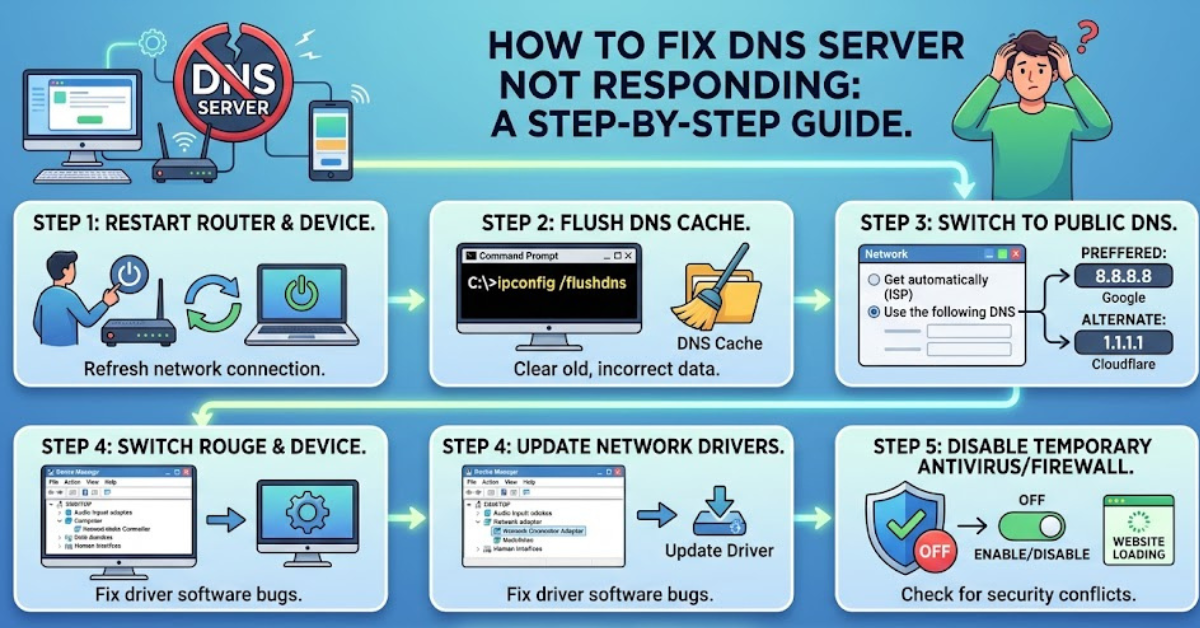
1. Restart Your Router and Device
This is the simplest and most effective fix.
- Turn off your router
- Wait 30–60 seconds
- Turn it back on
- Restart your computer or phone
This clears temporary network issues.
2. Switch to a Different Browser
Sometimes the issue isn’t your network—it’s your browser.
- Try Chrome, Firefox, or Edge
- Clear cache and cookies
- Disable unnecessary extensions
If the site loads elsewhere, your browser was the problem.
3. Disable VPN or Antivirus Temporarily
Security tools can sometimes block DNS requests.
- Turn off VPN
- Disable antivirus briefly
- Check if the connection works
If it does, adjust your security settings instead of keeping them off.
How to Fix DNS Server Not Responding on Windows
If you’re using Windows, there are a few targeted fixes.
1. Flush DNS Cache
This clears outdated records.
- Open Command Prompt as administrator
- Type:
ipconfig /flushdns - Press Enter
You’ll see a confirmation message once it’s done.
2. Change DNS Server Address
Switching to a public DNS can solve many issues.
- Go to Network Settings
- Select your connection
- Open IPv4 settings
- Enter:
- Preferred DNS: 8.8.8.8
- Alternate DNS: 8.8.4.4
This works for systems like Windows 10, Windows 11, and even older versions.
3. Update Network Drivers
Outdated drivers can cause connectivity problems.
- Open Device Manager
- Find Network Adapters
- Right-click and update driver
Keeping drivers updated ensures smooth performance.
How to Fix DNS Server Not Responding on WiFi
If the issue is WiFi-specific, focus on your network.
Try These Steps
- Move closer to the router
- Reset network settings on your device
- Forget and reconnect to WiFi
- Check for ISP outages
Weak signals or interference often cause DNS errors.
How to Fix DNS Server Not Responding on Gaming Consoles
Gamers often run into DNS issues while connecting online.
For PS5, PS4, or Xbox
- Go to network settings
- Set DNS manually
- Use public DNS values (like 8.8.8.8)
- Restart the console
This can improve both connectivity and speed.
How to Fix DNS Server Not Responding on Mobile
Phones can also experience this issue, especially on unstable networks.
Quick Mobile Fixes
- Toggle airplane mode on and off
- Restart your phone
- Switch between WiFi and mobile data
- Reset network settings
If the issue persists, try changing DNS in advanced WiFi settings.
Advanced Troubleshooting Methods
If basic fixes don’t work, go deeper.
1. Reset TCP/IP Stack
This restores your network configuration.
- Open Command Prompt
- Type:
netsh int ip reset - Restart your computer
2. Disable Secondary Connections
Multiple active networks can cause conflicts.
- Disable unused Ethernet or WiFi adapters
- Keep only one active connection
3. Check Firewall Settings
Firewalls can block DNS requests.
- Open firewall settings
- Allow DNS-related traffic
- Ensure no restrictions on your browser
Common Mistakes to Avoid
Even small errors can make things worse.
- Ignoring router issues
- Using incorrect DNS addresses
- Disabling security tools permanently
- Skipping system restarts
A step-by-step approach works best.
Tips to Prevent DNS Issues
Once fixed, keep your connection stable with these habits:
- Restart your router regularly
- Keep your system updated
- Use reliable DNS providers
- Avoid overloaded networks
Prevention saves time and frustration later.
FAQs
What does DNS server not responding mean?
It means your device can’t connect to the DNS server to translate website names into IP addresses.
How to fix DNS server not responding error quickly?
Restart your router, flush DNS cache, or switch to a public DNS server.
Can WiFi cause DNS issues?
Yes, weak signals or router problems can interrupt DNS communication.
How to fix DNS server not responding on laptop?
Try flushing DNS, updating drivers, or changing DNS settings in network configuration.
Is this a serious problem?
Usually not. It’s a common issue that can often be fixed in minutes.
Conclusion
Dealing with internet issues can be frustrating, but learning how to fix DNS server not responding puts you back in control. Most of the time, the solution is simple—restart your router, update settings, or switch DNS servers.
Start with basic fixes, then move to advanced steps if needed. With the right approach, you’ll not only solve the problem but also prevent it from happening again.