
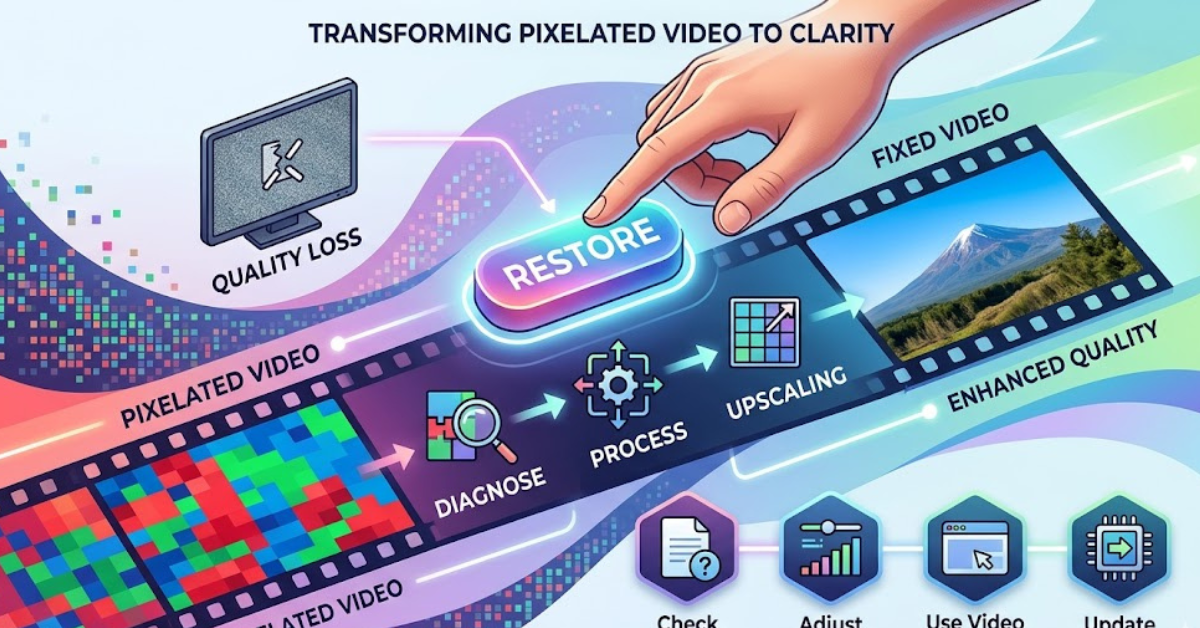

Nothing ruins a great video faster than blurry, blocky visuals. If you’ve been searching for how to fix pixelated video, you’re definitely not alone. Pixelation is a common issue caused by low resolution, compression, or poor recording settings.
The good news? In many cases, you can improve or even fix it. In this guide, you’ll learn practical, real-world solutions—from quick fixes on your phone to advanced editing techniques—so your videos look sharp and professional again.
What Causes Pixelated Video?
Before jumping into solutions, it helps to understand why pixelation happens in the first place.
Common Reasons for Pixelation
- Low resolution recording (e.g., 480p or lower)
- Heavy compression during upload or export
- Poor lighting conditions creating noise
- Digital zoom instead of optical zoom
- Streaming issues due to slow internet
In short, pixelation usually means your video doesn’t have enough visual data to display clearly.
How to Fix Pixelated Video: Quick Fixes
Let’s start with simple methods that often solve the problem immediately.
1. Check Video Resolution
Always confirm your video is playing at the highest resolution available. Many platforms automatically reduce quality.
- Switch from 480p to 1080p or higher
- Re-download the original file if needed
2. Improve Playback Settings
Sometimes the issue isn’t the video—it’s the player.
- Use a high-quality media player
- Enable hardware acceleration
- Update your video drivers
3. Re-export the Video Properly
If you edited the video, export settings matter a lot.
- Choose a higher bitrate
- Use formats like MP4 (H.264 or H.265)
- Avoid excessive compression
How to Fix Pixelated Video on iPhone and Mobile
Mobile users often face pixelation due to compression or app limitations.
Simple Mobile Fixes
- Edit using built-in tools to adjust sharpness
- Re-record in higher resolution (4K if possible)
- Use apps that enhance video clarity
Best Practices
- Avoid sending videos through apps that compress files
- Use cloud sharing instead of messaging apps
How to Fix Pixelated Video in Editing Software
If quick fixes don’t work, editing tools can help improve quality.
In Video Editors (General Steps)
- Apply sharpening filters carefully
- Reduce noise to smooth pixelation
- Adjust contrast and brightness for clarity
- Upscale resolution using AI tools
These steps are commonly used in tools like Premiere Pro, Final Cut Pro, and others.
Key Tip
Don’t over-sharpen. Too much sharpening can make pixelation more noticeable.
How to Fix Pixelated Video Online (Free Methods)
If you don’t want to install software, online tools can help.
What Online Tools Can Do
- Enhance resolution
- Reduce compression artifacts
- Apply automatic sharpening
Limitations
- Free tools may reduce file size or quality
- Upload speed depends on internet connection
Still, they’re great for quick fixes when you’re in a hurry.
How to Fix Pixelated Video Streaming Issues
Pixelation during streaming is usually a network problem.
Fix Streaming Pixelation
- Check your internet speed
- Lower other bandwidth usage
- Pause and let the video buffer
- Switch to a more stable connection
If the issue persists, the original upload may already be low quality.
How to Prevent Pixelated Videos in the Future
Fixing is helpful, but preventing is even better.
Recording Tips
- Use at least 1080p resolution
- Ensure good lighting
- Avoid digital zoom
Editing and Export Tips
- Maintain high bitrate
- Avoid multiple compressions
- Export in high-quality formats
Upload Tips
- Use platforms that preserve quality
- Upload original files whenever possible
Common Mistakes to Avoid
When trying to fix pixelation, people often make things worse.
Watch Out For
- Over-editing with too many filters
- Upscaling extremely low-quality videos
- Using low-quality converters repeatedly
Remember, you can improve a video—but you can’t fully restore missing detail.
FAQs
Can you completely fix a pixelated video?
Not always. You can improve it, but severely low-quality footage cannot be fully restored.
How to fix pixelated video free?
Use free editing tools or online enhancers that offer sharpening and upscaling features.
Why does my video look pixelated after export?
This usually happens بسبب low bitrate or incorrect export settings.
How to fix pixelated video on iPhone?
Adjust sharpness, avoid compressed sharing, and use higher recording settings for future videos.
Does increasing resolution fix pixelation?
Upscaling can help slightly, but it won’t recreate lost detail from the original footage.
Conclusion
Learning how to fix pixelated video can save your content from looking unprofessional. While some issues can’t be completely reversed, the right combination of playback settings, editing tools, and export techniques can make a noticeable difference.
Focus on both fixing and preventing the problem. Record in higher quality, use proper editing settings, and avoid unnecessary compression. With these habits, your videos will stay clear, sharp, and ready to impress.