


Ever clicked on a website and waited… and waited… before anything even started loading? That frustrating delay often comes down to one thing: DNS. If you’re searching for how to fix slow DNS lookup, you’re already on the right track to speeding up your internet experience.
DNS (Domain Name System) acts like the internet’s phonebook, translating domain names into IP addresses. When this process slows down, everything feels sluggish—even if your internet connection is otherwise fine. In this guide, you’ll learn practical, proven ways to diagnose and fix the issue quickly.
What Causes Slow DNS Lookup?
Before fixing the problem, it helps to understand why it happens.
Common causes include:
- Overloaded or slow DNS servers
- Incorrect network settings
- ISP-related DNS delays
- Outdated DNS cache
- Firewall or antivirus interference
Pinpointing the cause makes it easier to apply the right solution.
How to Fix Slow DNS Lookup: Step-by-Step Solutions
Let’s walk through the most effective ways to solve this issue. You don’t need advanced technical skills—just follow along.
1. Switch to a Faster DNS Provider
Your default DNS server (usually from your ISP) may not be the fastest.
Try switching to public DNS providers like:
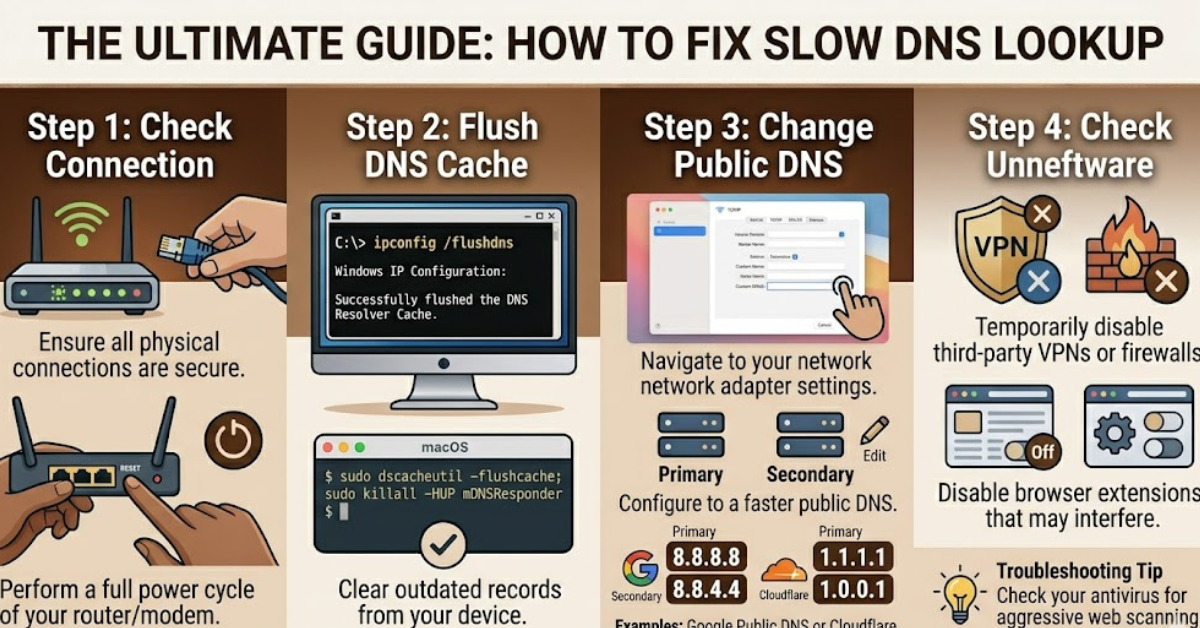
- Google DNS (8.8.8.8 / 8.8.4.4)
- Cloudflare DNS (1.1.1.1 / 1.0.0.1)
This is often the quickest fix when learning how to fix slow DNS lookup.
2. Flush Your DNS Cache
Your system stores DNS data locally, but it can become outdated or corrupted.
On Windows:
- Open Command Prompt
- Type:
ipconfig /flushdns - Press Enter
On macOS:
- Use Terminal and run the appropriate flush command for your version
This clears old entries and forces your system to fetch fresh data.
3. Restart Your Router and Device
Sometimes the simplest fix works best.
- Turn off your router for 30 seconds
- Restart your computer or phone
- Reconnect and test browsing speed
This can resolve temporary glitches affecting DNS performance.
4. Disable Unnecessary Background Apps
Certain apps constantly make DNS requests, slowing things down.
Check for:
- VPN software
- Browser extensions
- Cloud sync tools
Disable or limit them to reduce DNS load.
5. Check Your Firewall and Antivirus Settings
Security software can sometimes interfere with DNS resolution.
- Temporarily disable your firewall or antivirus
- Test your connection speed
- Re-enable and adjust settings if needed
Be cautious and only disable protection briefly for testing.
6. Update Network Drivers
Outdated drivers can cause delays in network communication.
- Go to Device Manager (Windows)
- Update your network adapter drivers
- Restart your system
Keeping drivers current ensures smoother DNS operations.
7. Use a Wired Connection Instead of Wi-Fi
Wireless connections can introduce latency.
- Switch to an Ethernet cable if possible
- Test if DNS lookup improves
This is especially useful for gaming or streaming setups.
8. Optimize Browser Settings
Your browser plays a role in DNS lookups too.
- Clear browser cache
- Disable unused extensions
- Enable DNS prefetching (in supported browsers)
These tweaks can noticeably improve responsiveness.
Advanced Tips for Persistent DNS Issues
If basic fixes don’t work, try these:
- Change your router’s DNS settings directly
- Use a DNS benchmarking tool to find the fastest server
- Check for ISP throttling or outages
- Reset network settings to default
These steps are helpful for deeper troubleshooting.
Signs Your DNS Lookup Is Fixed
Once you apply the solutions, you should notice:
- Faster website loading times
- Reduced delay before pages start loading
- Smoother browsing experience overall
If performance improves, your DNS issue is likely resolved.
FAQs
What is DNS lookup in simple terms?
It’s the process of converting a website name into an IP address your computer can understand.
Why is my DNS lookup slow but internet speed is fast?
Because DNS resolution happens before data transfer, delays here can slow down the entire browsing experience.
Is switching DNS safe?
Yes, using reputable public DNS providers is safe and often more reliable.
How often should I flush DNS cache?
Only when you experience issues; it’s not needed regularly.
Can a VPN cause slow DNS lookup?
Yes, some VPNs route DNS requests through slower servers, increasing delay.
Conclusion
Understanding how to fix slow DNS lookup can make a noticeable difference in your everyday internet use. From switching DNS providers to clearing cache and optimizing settings, most fixes are quick and straightforward.
Start with the simplest solutions, test your results, and move to advanced steps if needed. Once your DNS is running efficiently, you’ll enjoy faster, smoother browsing without those annoying delays.