

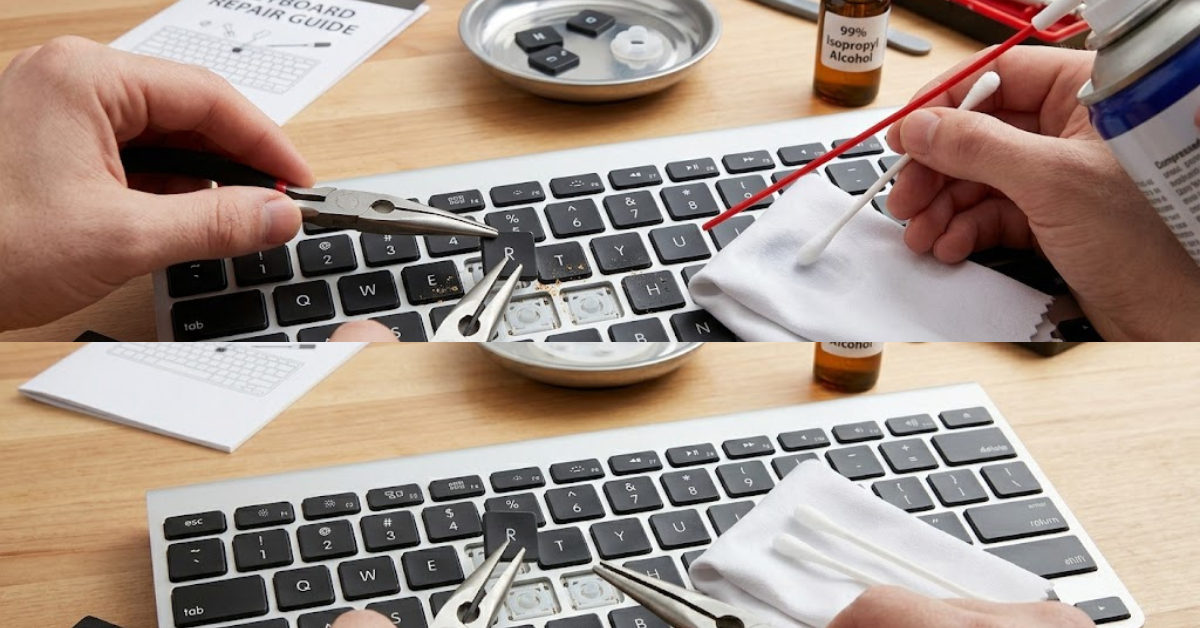

Few things are more frustrating than pressing a key and having it stick or respond slowly. If you’ve ever dealt with this issue, you’re not alone. Learning how to fix sticky keyboard keys can save you from costly repairs or even replacing your device.
Whether it’s crumbs, spilled liquid, or simple wear and tear, sticky keys are usually fixable with the right approach. This guide walks you through safe, effective methods to get your keyboard working smoothly again.
Why Do Keyboard Keys Become Sticky?
Before diving into solutions, it helps to understand the root cause. Sticky keys don’t just happen randomly.
Common reasons include:
- Food crumbs or dust trapped under keys
- Spilled drinks or residue buildup
- Oil and dirt from fingers
- Worn-out key mechanisms
- Humidity or environmental factors
Identifying the cause helps you choose the safest and most effective fix.
Tools You’ll Need
You don’t need professional equipment. Most fixes require simple items:
- Microfiber cloth
- Compressed air can
- Cotton swabs
- Isopropyl alcohol (70% or higher)
- Toothpick or soft brush
Having these ready makes the process quicker and safer.
How to Fix Sticky Keyboard Keys Step by Step
Here’s a general method that works for most keyboards.
1. Turn Off Your Device
Always power off your laptop or keyboard before cleaning. This prevents accidental input or damage.
2. Shake Out Loose Debris
Turn the keyboard upside down and gently tap it. This removes crumbs and dust trapped underneath.
3. Use Compressed Air
Blow air between the keys at an angle. This helps dislodge particles stuck deeper inside.
4. Clean the Surface
Lightly dampen a cloth or cotton swab with isopropyl alcohol and wipe around the sticky key.
5. Press the Key Repeatedly
After cleaning, press the key several times to help loosen any remaining residue.
How to Fix Sticky Keyboard Keys on Laptop
Laptop keyboards are more delicate, so extra care is needed.
Follow these tips:
- Avoid removing keys unless necessary
- Use minimal liquid to prevent internal damage
- Clean gently around the edges of the key
If a key remains sticky, you can carefully lift it using a thin tool, clean underneath, and snap it back into place.
How to Fix Sticky Keyboard Keys on a MacBook
MacBook keyboards require even more caution due to their slim design.
Here’s what works best:
- Use compressed air in short bursts at different angles
- Tilt the MacBook slightly while cleaning
- Use a soft, lint-free cloth with a tiny amount of alcohol
Avoid prying off keys unless you’re confident, as some MacBook models have fragile key mechanisms.
Dealing with Liquid Spills
If your sticky key is caused by a spill, act quickly.
- Turn off the device immediately
- Disconnect power and accessories
- Gently wipe away visible liquid
- Let the keyboard dry completely before use
For sugary drinks, you may need deeper cleaning since residue can harden and cause sticking.
When to Remove and Clean Under Keys
Sometimes surface cleaning isn’t enough.
Consider removing the keycap if:
- The key feels stuck or uneven
- Cleaning from the outside didn’t work
- There’s visible debris underneath
Be gentle and check your keyboard type before attempting this step.
Preventing Sticky Keys in the Future
Once you’ve learned how to fix sticky keyboard keys, prevention becomes just as important.
- Avoid eating over your keyboard
- Clean regularly with compressed air
- Wash your hands before typing
- Use a keyboard cover for extra protection
Small habits can keep your keyboard working smoothly for years.
Signs You May Need Professional Repair
Sometimes DIY fixes aren’t enough.
Watch for these signs:
- Keys not responding at all
- Multiple keys sticking
- Internal damage from liquid spills
- Broken key mechanisms
In these cases, professional repair or replacement may be the better option.
FAQs
What is the fastest way to fix a sticky key?
Using compressed air and a cotton swab with alcohol is usually the quickest solution.
Can I use water to clean sticky keys?
It’s not recommended. Use isopropyl alcohol instead, as it evaporates quickly and is safer for electronics.
Why is only one key sticky?
This usually means debris or residue is trapped under that specific key.
Is it safe to remove laptop keys?
It can be, but only if done carefully. Some keyboards are more delicate than others.
How long should I wait after cleaning?
Wait at least 10–15 minutes to ensure everything is completely dry before turning the device back on.
Conclusion
Knowing how to fix sticky keyboard keys gives you a simple way to extend the life of your device and avoid unnecessary expenses. Most issues come down to dirt, debris, or minor spills—and they can be fixed with a bit of patience and the right tools.
Start with gentle cleaning methods, and only move to deeper fixes if needed. With regular maintenance, your keyboard will stay responsive, clean, and frustration-free.