


Ever needed to quickly capture something on your screen but didn’t know how? Learning how to screenshot on computer is one of those essential skills that makes everyday tasks easier—whether you’re saving important info, sharing something, or troubleshooting an issue.
The good news is that taking screenshots is simple once you know the right shortcuts. In this guide, we’ll walk you through the easiest ways to capture your screen on different devices and operating systems.
How to Screenshot on Computer Using Keyboard
The fastest way to take a screenshot is by using your keyboard.
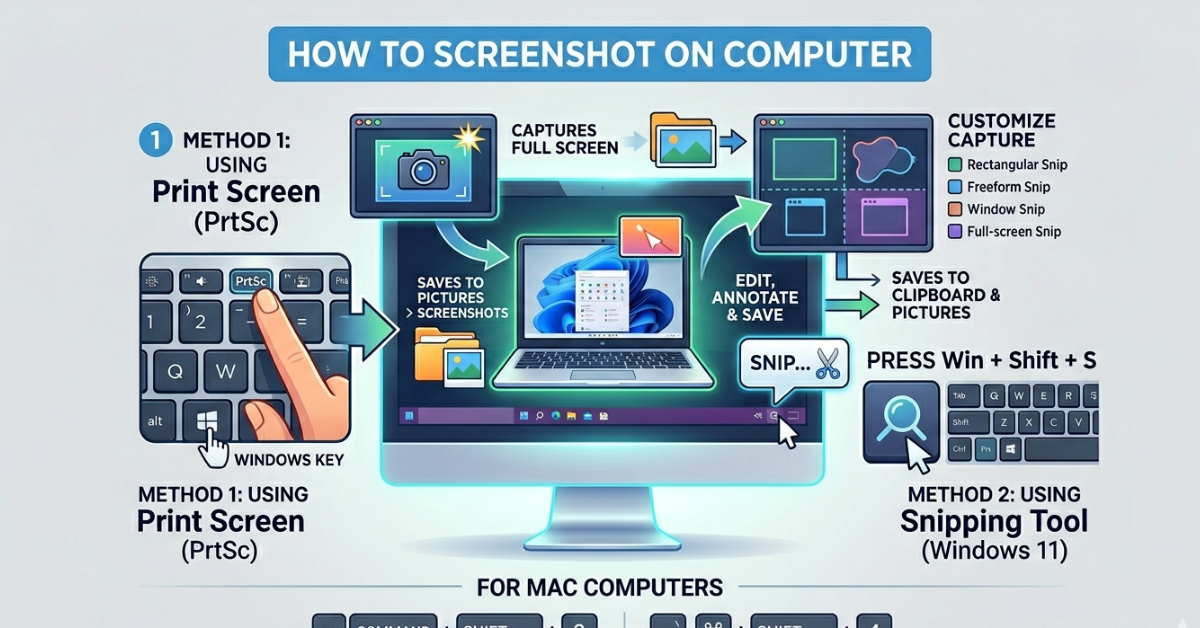
1. Full Screen Screenshot (Print Screen)
Press:
- PrtScn (Print Screen)
What happens?
- Captures the entire screen
- Copies it to the clipboard
Next steps:
- Open Paint or any editor
- Press Ctrl + V
- Save the image
This works on most desktops and laptops, including HP, Dell, Lenovo, and Acer.
How to Screenshot on Computer Windows (All Versions)
Windows offers several built-in methods.
2. Windows + Print Screen
Press:
- Windows Key + PrtScn
Result:
- Screen dims briefly
- Screenshot saved automatically
Location:
- Pictures > Screenshots
3. Windows + Shift + S (Snipping Tool)
Press:
- Windows + Shift + S
Features:
- Select specific area
- Copy to clipboard
- Edit instantly
This is one of the most flexible ways to capture part of your screen.
How to Screenshot on Computer Without Windows Key
If your keyboard doesn’t have a Windows key, don’t worry.
Try these options:
- PrtScn alone (then paste manually)
- Fn + PrtScn (on some laptops)
You can still use tools like Snipping Tool through the search menu.
How to Screenshot on Computer Mac
Mac users have their own shortcuts.
Full Screen:
- Command (⌘) + Shift + 3
Partial Screenshot:
- Command (⌘) + Shift + 4
Window Screenshot:
- Press Command + Shift + 4, then tap Spacebar
Screenshots are saved automatically to your desktop.
How to Screenshot on Computer Chromebook
Chromebooks use slightly different keys.
Full Screen:
- Ctrl + Show Windows key (rectangle icon)
Partial Screenshot:
- Ctrl + Shift + Show Windows key
Screenshots are saved in the Downloads folder.
How to Screenshot on Computer Screen (Specific Area or Window)
Sometimes you don’t need the whole screen.
Best tools for this:
- Snipping Tool (Windows)
- Snip & Sketch
- Mac screenshot shortcuts
Benefits:
- Cleaner images
- Focus on important details
- Easier sharing
How to Screenshot on Different Computer Brands
The method is mostly the same across brands.
HP / Dell / Lenovo / Acer / Samsung
- Use standard Windows shortcuts
- Keyboard layout may vary slightly
Desktop vs Laptop
- Desktop keyboards usually have a dedicated PrtScn key
- Laptops may require Fn key combinations
So if you’re searching how to screenshot on computer HP or Dell desktop, the steps remain nearly identical.
Tips for Taking Better Screenshots
Want your screenshots to look more professional? Try these:
- Crop unnecessary areas
- Use annotation tools
- Highlight key information
- Save files with clear names
FAQs About Screenshot on Computer
1. How to screenshot on computer quickly?
Use Windows + PrtScn (Windows) or Command + Shift + 3 (Mac) for instant capture.
2. How to screenshot on computer with keyboard?
Press the Print Screen key or use shortcut combinations depending on your system.
3. Where are screenshots saved on Windows?
They are saved in Pictures > Screenshots if using Windows + PrtScn.
4. How to screenshot on computer Chromebook?
Use Ctrl + Show Windows key for full screen or add Shift for partial capture.
5. Can I screenshot without Print Screen button?
Yes, use tools like Snipping Tool or keyboard alternatives like Fn + combinations.
6. How to screenshot on computer Mac easily?
Use Command + Shift + 3 for full screen or Command + Shift + 4 for selected area.
Conclusion
Now you know exactly how to screenshot on computer, no matter which device or operating system you’re using. From quick keyboard shortcuts to advanced snipping tools, there’s a method for every situation.
Take a moment to try these techniques and find the one that works best for you. Once you get comfortable, capturing your screen will feel effortless—and incredibly useful in your daily routine.