

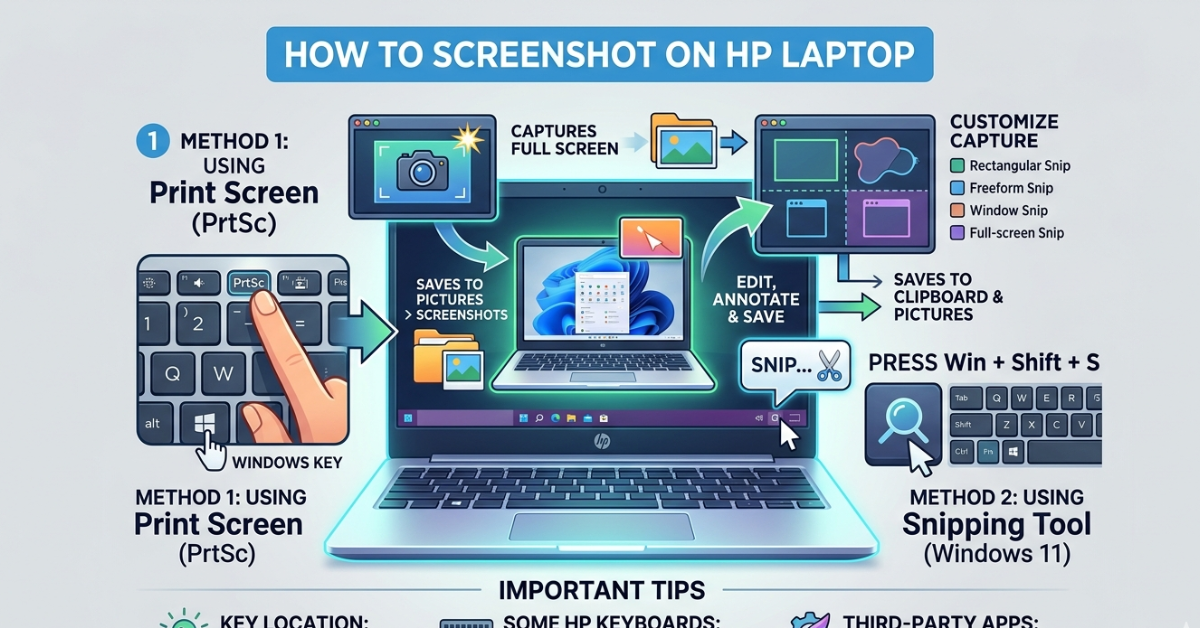

Need to save something on your screen quickly? Knowing how to screenshot on HP laptop can save you time whether you’re capturing an error message, saving an image, or sharing something important.
The good news? There’s more than one way to take a screenshot, and most of them are incredibly simple once you know the shortcuts. In this guide, we’ll walk you through all the methods step by step.
How to Screenshot on HP Laptop With Keyboard
The easiest way to take a screenshot is by using your keyboard.
1. Full Screen Screenshot (Print Screen Key)
Press:
- PrtScn (Print Screen)
What happens?
- It captures the entire screen
- The image is copied to your clipboard
What to do next:
- Open Paint or any image editor
- Press Ctrl + V to paste
- Save the file
This method works across most HP models, including Envy, Pavilion, and ProBook.
How to Screenshot on HP Laptop Windows 10 and Windows 11
If you’re using Windows 10 or 11, there’s a faster option.
2. Windows + Print Screen Shortcut
Press:
- Windows Key + PrtScn
Result:
- The screen dims briefly
- Screenshot is automatically saved
Where to find it:
- Go to Pictures > Screenshots
This is one of the quickest ways to capture and save instantly.
How to Screenshot on HP Laptop Using Snipping Tool
For more control, use the built-in Snipping Tool.
Steps:
- Search for Snipping Tool
- Click New
- Select the area you want to capture
Types of snips:
- Rectangular
- Free-form
- Window
- Full-screen
This method is perfect when you don’t want the entire screen.
How to Screenshot on HP Laptop Without PrintScreen Button
Some HP laptops (especially compact ones) may not have a dedicated PrtScn key.
Try these alternatives:
- Fn + Windows Key + Spacebar
- Windows + Shift + S (Snip & Sketch tool)
Why this works:
- It activates screenshot tools without needing the Print Screen key
This is ideal if you’re wondering how to screenshot on HP laptop without printscreen button.
How to Screenshot on HP Laptop Using Windows + Shift + S
This is one of the most flexible methods.
Steps:
- Press Windows + Shift + S
- Choose the capture type
- Select the area
Result:
- Screenshot is copied to clipboard
- You can paste it anywhere
It’s fast, clean, and widely used in modern Windows systems.
How to Screenshot on HP Chromebook
If you’re using an HP Chromebook, the process is different.
Full Screenshot:
- Press Ctrl + Show Windows key (rectangle with lines)
Partial Screenshot:
- Press Ctrl + Shift + Show Windows key
Screenshots are saved automatically in your downloads folder.
How to Screenshot on Different HP Models
The method is mostly the same, but here’s how it applies to popular models:
Hewlett-Packard EliteBook / ProBook / OmniBook
- Use standard Windows shortcuts
- Business laptops follow the same process
HP Envy / Envy x360 / Stream
- Keyboard shortcuts work the same
- Touchscreen models can also use snipping tools
HP with Bang & Olufsen Audio
- Audio branding doesn’t affect screenshot features
So no matter your model, the steps remain consistent.
Tips for Better Screenshots
Want cleaner, more useful screenshots? Keep these tips in mind:
- Crop unnecessary parts
- Highlight important areas
- Use snipping tools for precision
- Rename files for easy access
FAQs About Screenshot on HP Laptop
1. How to screenshot on HP laptop quickly?
Use Windows + PrtScn for instant saving or Windows + Shift + S for quick snipping.
2. How to screenshot on HP laptop keyboard without extra tools?
Press the PrtScn key or combine it with the Windows key.
3. Where do screenshots go on HP laptop?
They are saved in Pictures > Screenshots if using Windows + PrtScn.
4. How to screenshot on HP laptop Windows 7?
Press PrtScn, then paste the image into Paint and save it manually.
5. How to screenshot on HP laptop Chromebook?
Use Ctrl + Show Windows key for full screen or add Shift for partial capture.
6. Can I take a screenshot without a Windows key?
Yes, use Fn + PrtScn or built-in tools like Snipping Tool.
Conclusion
Learning how to screenshot on HP laptop is a simple but essential skill that can make your daily tasks much easier. Whether you prefer keyboard shortcuts, built-in tools, or Chromebook methods, there’s an option for everyone.
Now that you know multiple ways to capture your screen, try them out and see which one works best for you. Once you get the hang of it, taking screenshots will feel like second nature.